
Video editing guide
Tier List Templates: 4 Free Layouts for Your Videos
Published by Cutiz ·
Choose a tier list template below, download the layout, and make the ranking your own. This collection includes four original designs: a classic S–F board, an item spotlight, a reaction board and a reveal storyboard. Each is available as a PNG and an editable SVG, with a 1080 × 1920 canvas for a vertical composition.
The right template makes your opinion easier to follow. A complete board works when the finished ranking is the main attraction. A large item area helps when viewers need to see what you are judging. A reaction layout makes room for the explanation that gives the ranking its personality.
Once you have customized and recorded your board, make the tier list video in Cutiz. Trim the setup, arrange the reveals, add animated text and shape the pacing around your strongest decisions.
Choose a layout: Classic S–F · Item spotlight · Reaction board · Reveal storyboard
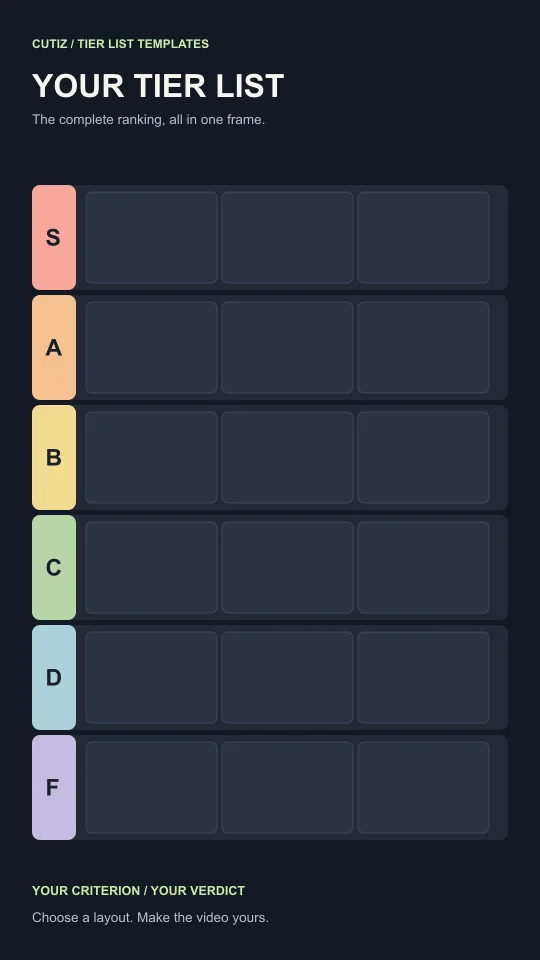 1. Classic S–FShow the complete ranking.
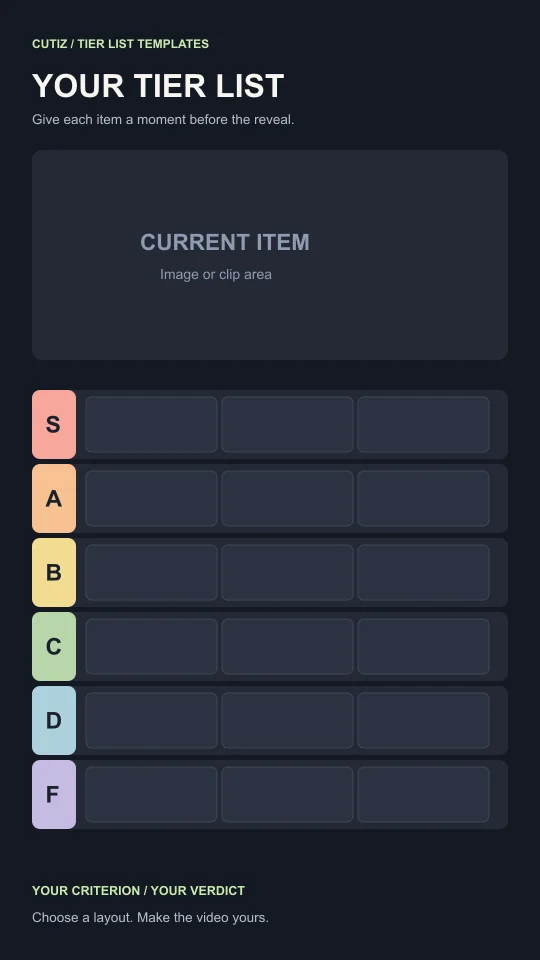 2. Item spotlightGive each choice a closer look.
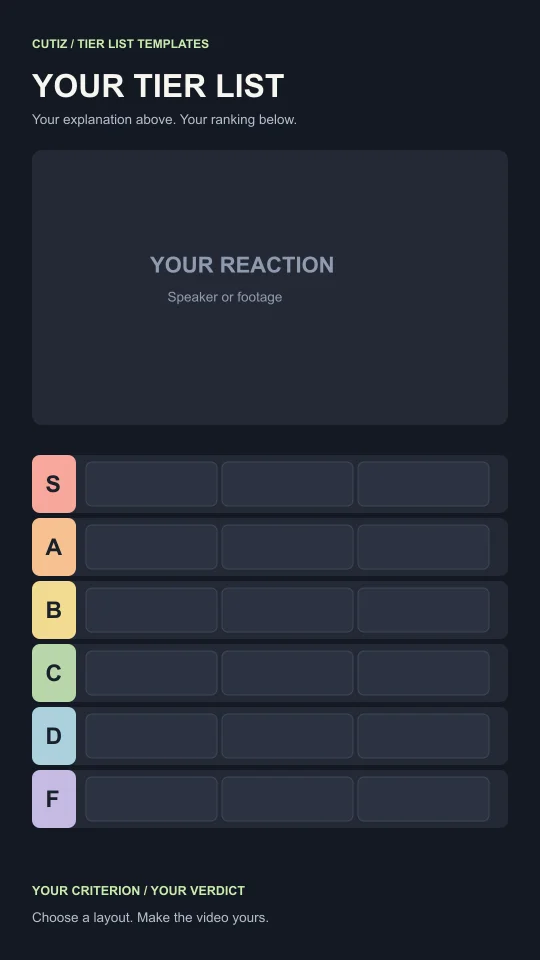 3. Reaction boardMake room for your explanation.
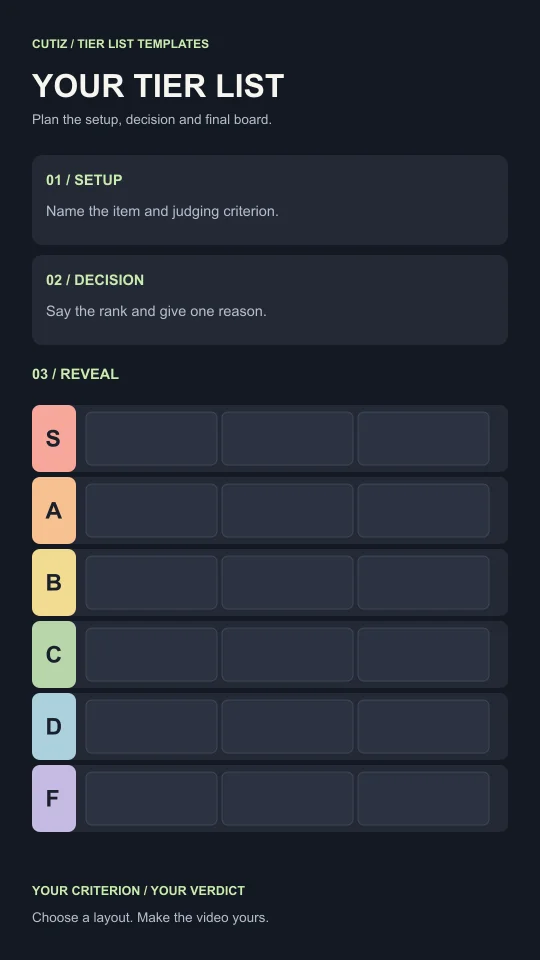 4. Reveal storyboardPlan the order before recording.
These are original editorial layouts and planning assets. The previews show the actual downloadable files, rather than the Cutiz interface. They are not native app presets or files that import directly as Cutiz projects.
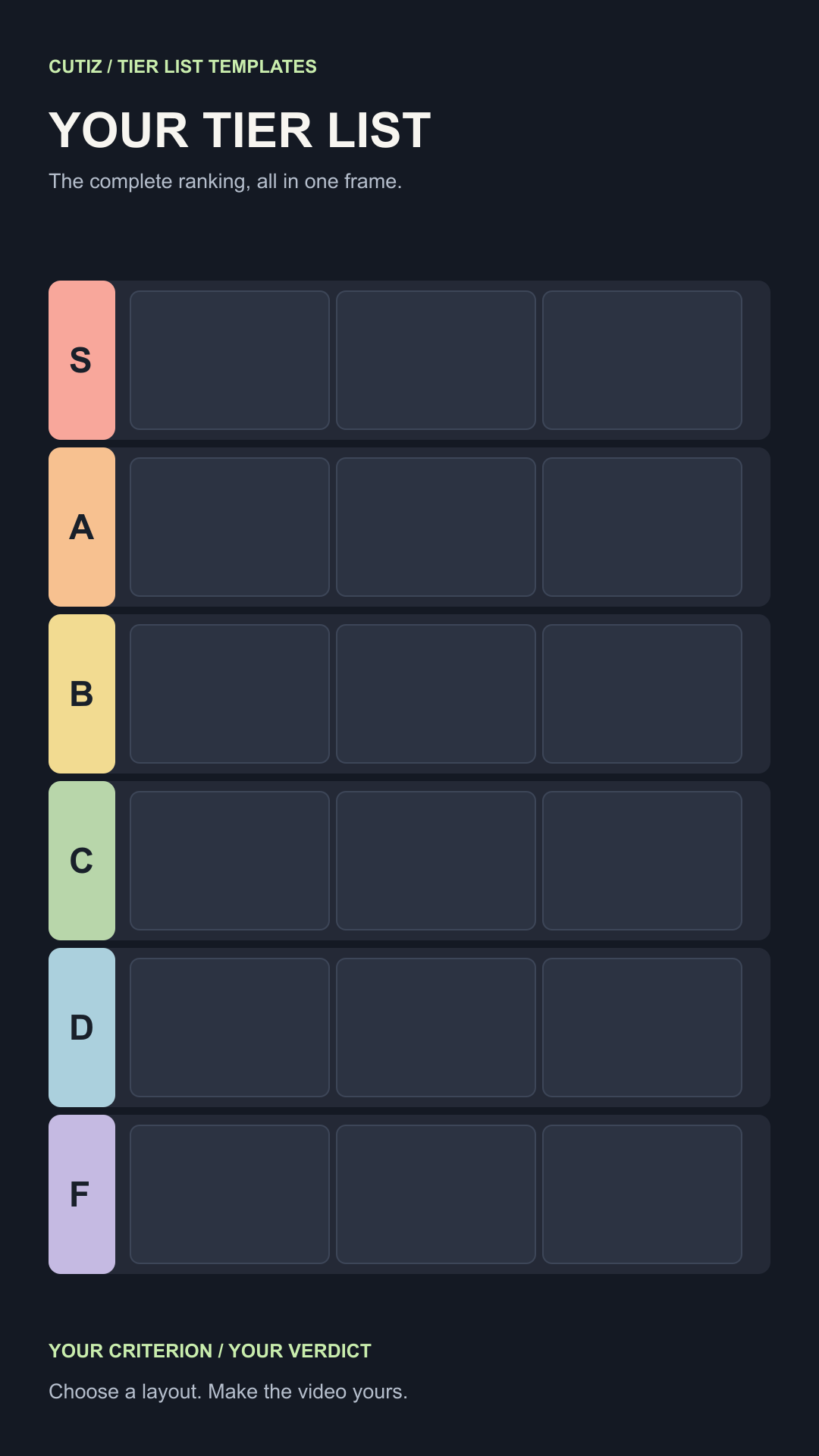
1. Classic S–F tier list template
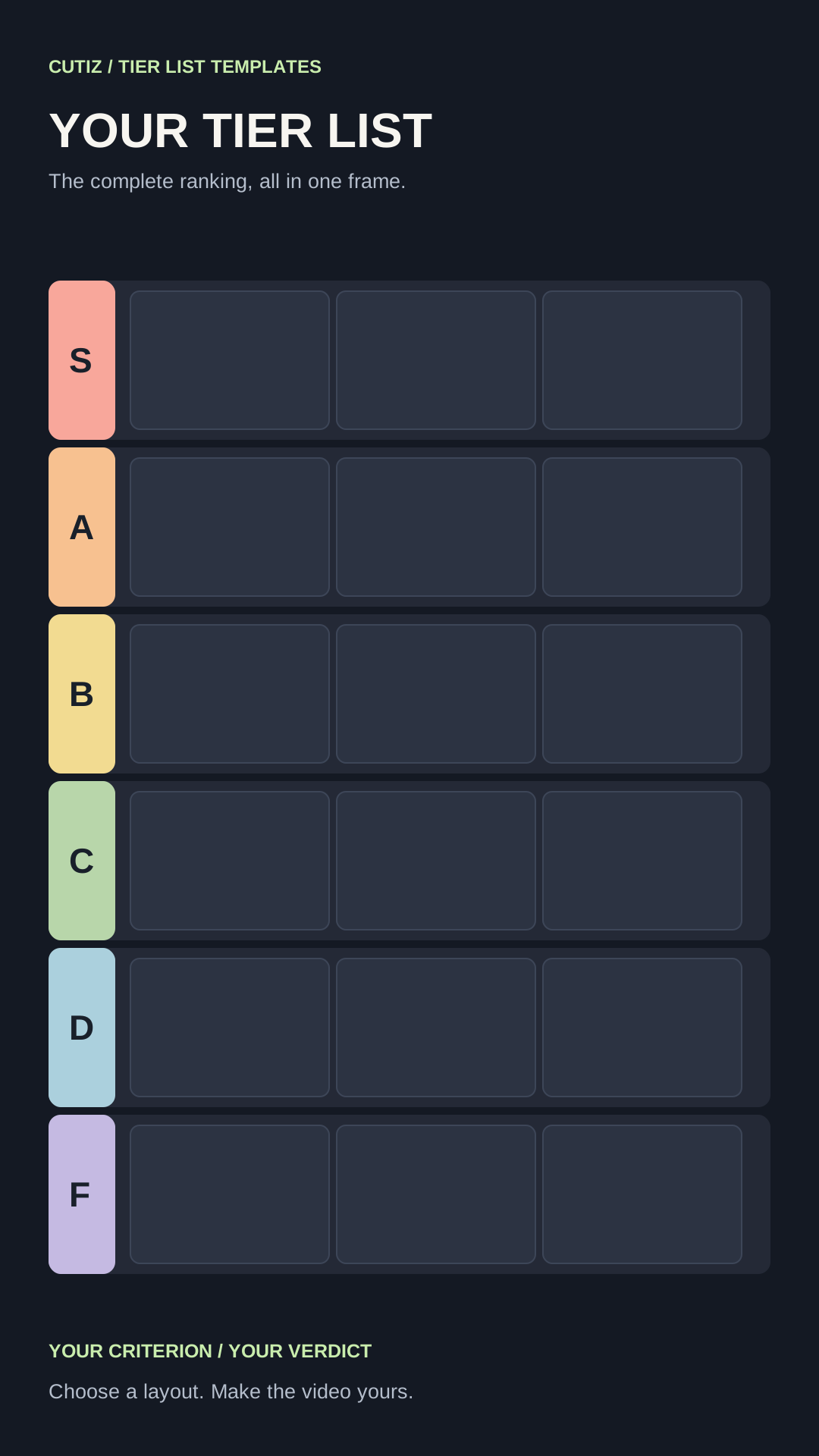
Choose the classic tier list template when the complete board is the point of the video. It has six labeled rows, uniform item placeholders and room for the subject and judging criterion. Use it for a food ranking, a collection of favorites, a comparison of your own projects or any topic where multiple items can share a tier.
The strength of this layout is consistency. Every item gets the same visual treatment, so the position does the talking. Keep names short and use a similar crop for each image. If one entry needs a detailed explanation, show a closer view in the video before returning to the full board.
A useful opening is: “I ranked these by [criterion], and this is the placement I expect people to disagree with.” It gives viewers a rule and a reason to watch without pretending that an opinion is an objective measurement.
2. Item spotlight tier list template
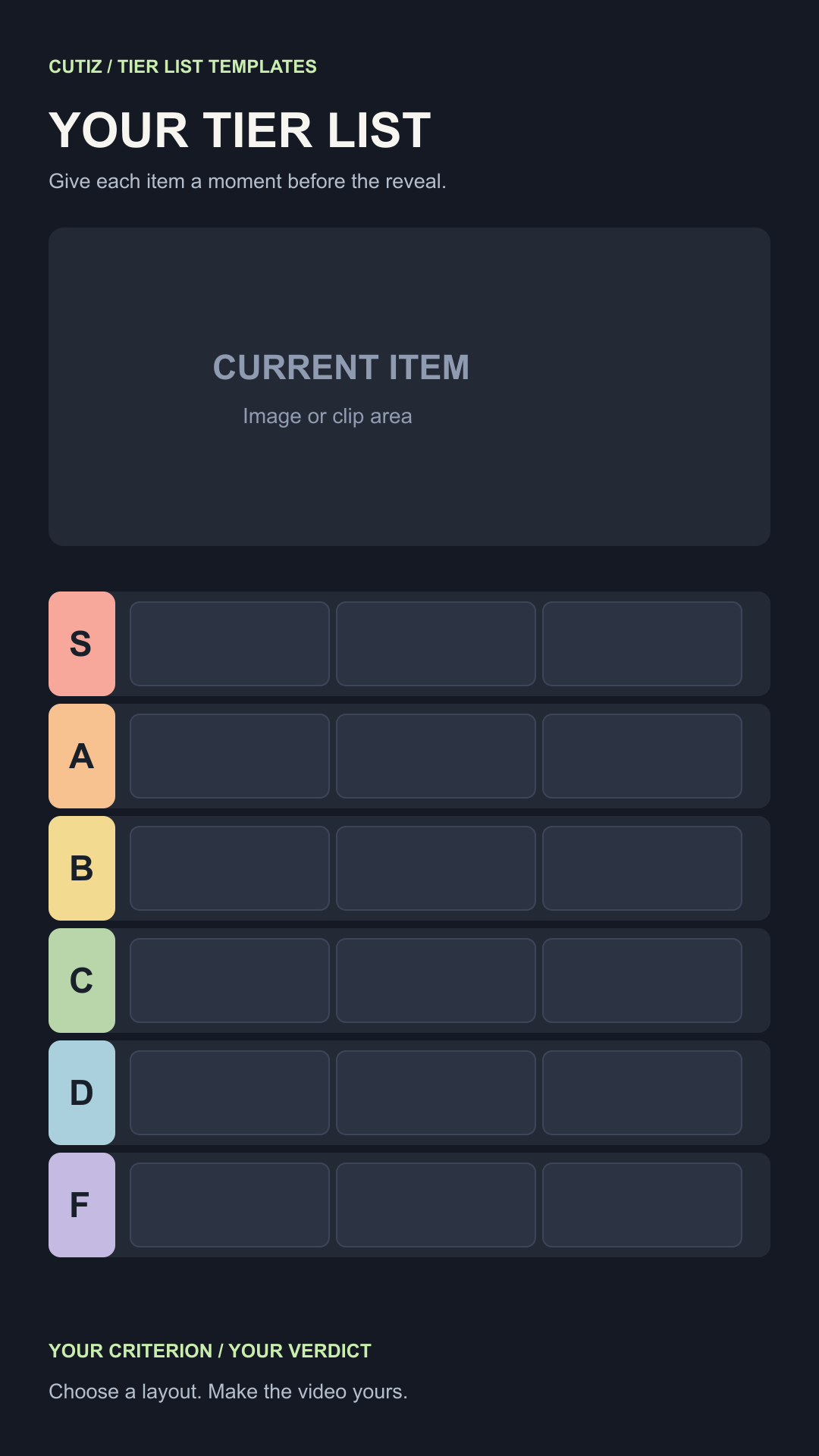
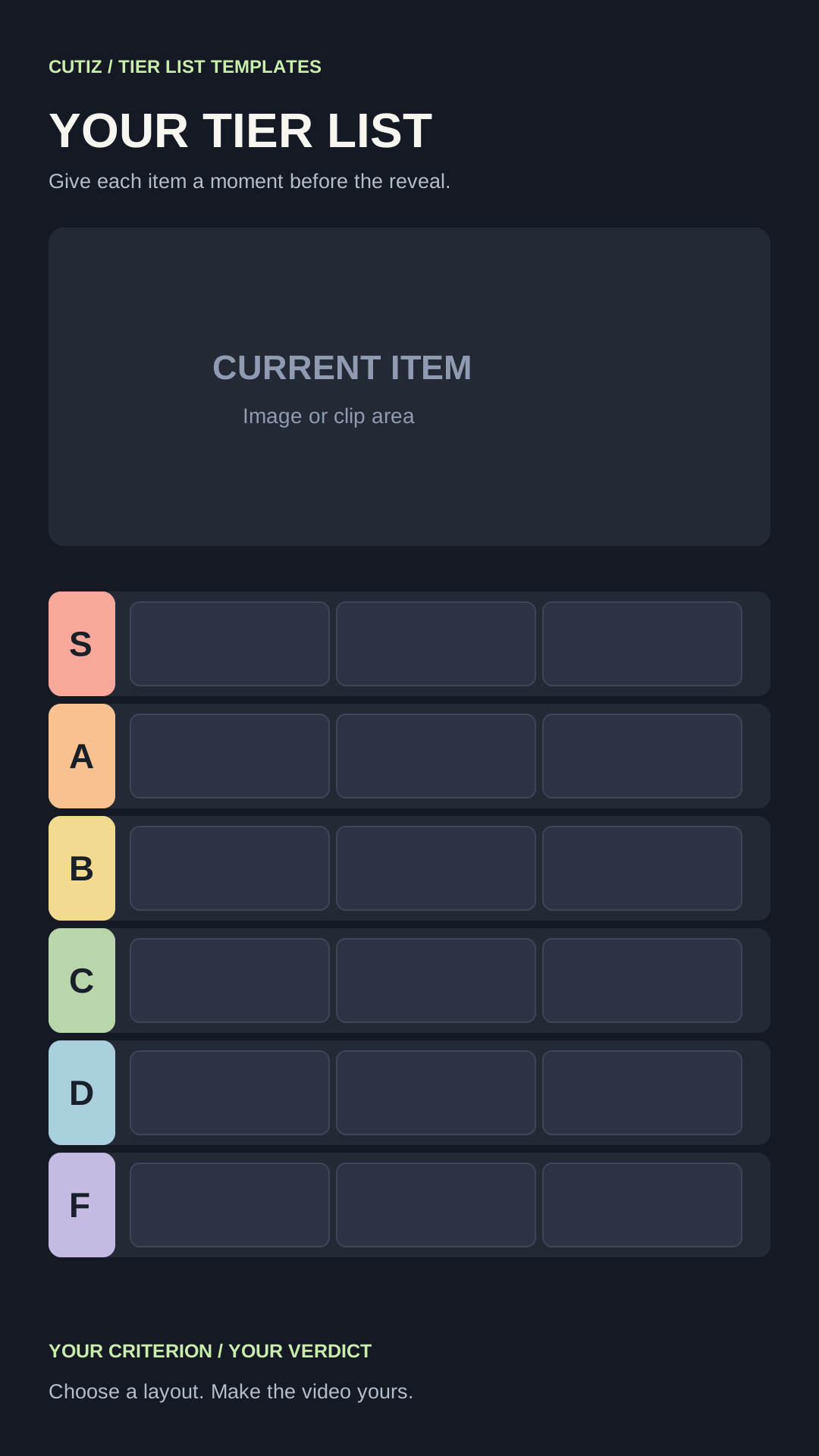
Choose the item spotlight when a small tile cannot show what matters. The current item has a large area above the ranking board, while the tiers remain visible below it. This works as a composition reference for products, photos, artwork or a clip that needs to be seen before you judge it.
Use the large area to introduce the evidence: the detail you like, the feature that changes your mind or the moment that explains the placement. Then reveal the rank. You can create successive board states in your image editor or record a board reveal, and edit the resulting footage in Cutiz.
A proposed script is: “This looks like an A at first, but [specific reason] puts it in B for me.” The sentence gives the change a reason. Avoid adding a rank animation before the viewer has identified the item.
3. Reaction board tier list template
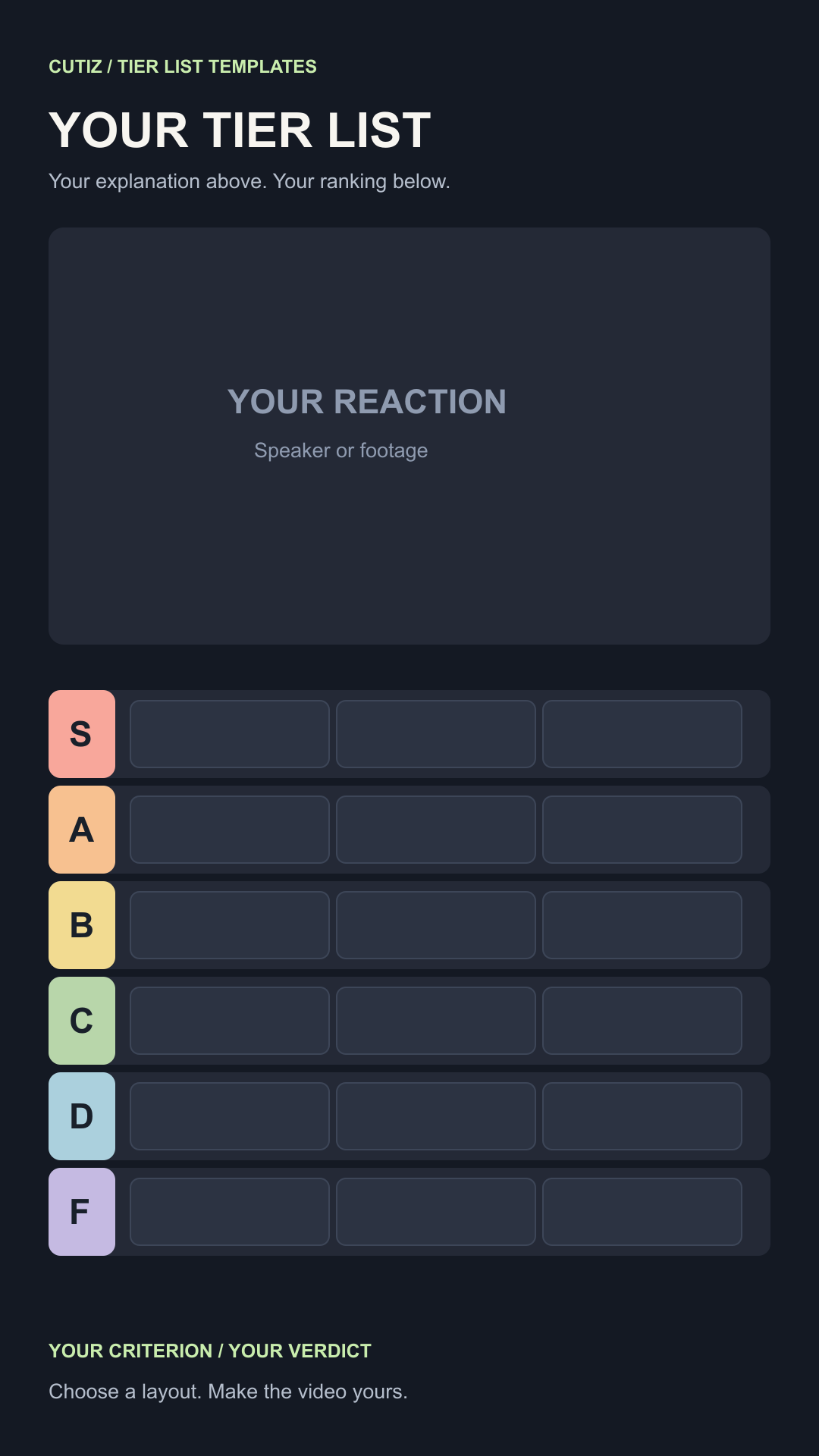
Choose the reaction board when your face, commentary or demonstration carries the video. The upper area is a composition guide for the speaker or footage. The ranking sits underneath, where viewers can check the placement while listening.
The placeholder marks where a speaker could appear; downloading the file does not insert your camera footage automatically. Use the layout to plan the recording and assemble your board and reaction in the video edit. Cutiz's timeline, video layers and split-screen give you ways to arrange those recordings.
This format suits a deliberate change of mind. For example: “I had this in S, but after comparing it with the others, it belongs in A.” Preserve the useful reaction around that sentence. Removing every pause can make the choice feel less natural.
4. Reveal storyboard for a tier list video
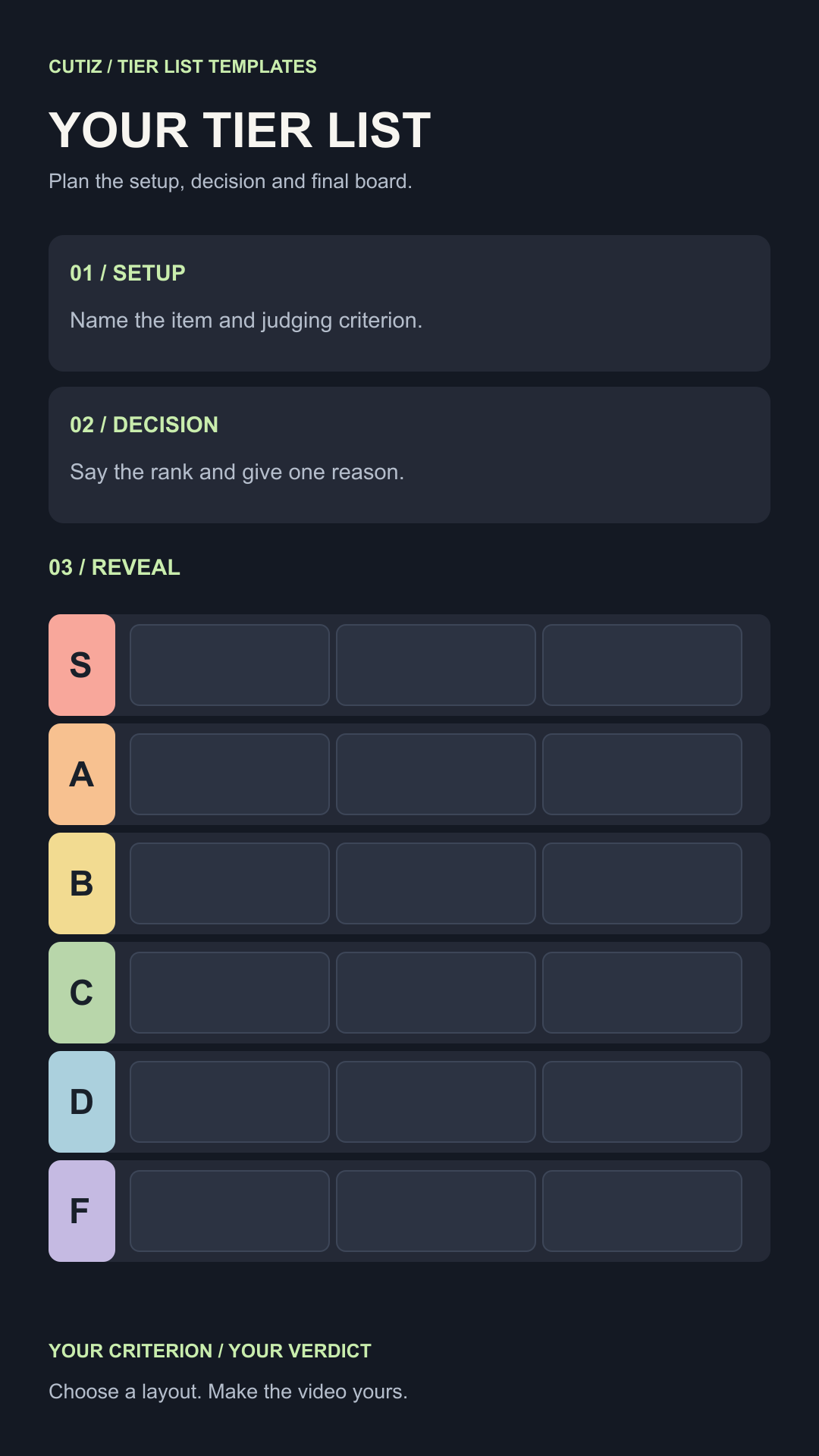
Choose the reveal storyboard when you have the opinions but keep losing the thread while recording. This is a planning sheet with three parts: setup, decision and reveal. The board underneath gives you a place to plan the final state.
In the setup, name the item and the criterion. In the decision, say the rank and the reason. In the reveal, show the placement clearly. Repeat that structure only where it helps; an obvious placement can be brief, while a surprising one deserves a fuller explanation.
The storyboard is useful before opening the timeline. It helps you identify what footage you actually need and which sentences belong together. After recording, bring those moments into Cutiz and use the plan as a guide for the edit.
Customize your tier list template
Start by replacing the subject and criterion text. Then rename the tiers if your topic needs a clearer scale. “Would buy again,” “only on sale” and “would skip” may say more about a shopping decision than letters alone.
The SVG files keep text and shapes editable in an SVG-capable editor. The PNG files are blank raster layouts you can work with in an image editor. Add your own item pictures and labels there, then capture a recording of the ranking or reveal. The tier list maker guide explains how to set up a consistent judging rule.
Keep an unchanged copy of the blank file so you can reuse the layout for another topic. You may adapt the supplied designs for your own personal or commercial videos; the permission covers these original layouts, while the images and clips you add remain your responsibility.
Download all four tier list templatesIf you already know your subject, start with a blank board made for a video game tier list, a fast food tier list, or an animated movies tier list. Each topic page includes its own PNG and editable SVG, plus a recording plan.
Make your chosen tier list video in Cutiz
Once the board is recorded, open your footage in Cutiz and make the sequence easy to follow. Trim preparation at the start, reorder decisions where needed, and use animated text to introduce the judging rule or emphasize a verdict. If you recorded a reaction separately, plan the board and speaker so neither covers the essential information.
For a spoken ranking, listen to the pacing before applying cleanup. Reversible silence removal can shorten empty stretches, while voice denoising can help the commentary. Keep pauses that give a viewer time to read or react to the placement.
Finish with the complete board and a question about the criterion: “Which item would you move if we ranked these by value instead?” That gives viewers something specific to respond to.
Make your chosen tier list video in Cutiz
For the complete workflow, follow how to make a tier list video. You already have the visual starting point; the next step is to record the choices and make the edit.